Ref: Sale from stock - SO made but no lot number is available
This KB concerns the conversion of a purchase item (RM) code into a sales item code (BF, FP, GA, HG, SI, TP) & assembly orders (required for conversion of an RM to a sales item).
Issue
You have made the sales order but there are no options available under Bin Code & so no lot number can be selected when trying to add the tracking.
Assembly Order was set to 'Off' when the SO was made.
Assembly Order was set to 'Off' when the SO was made.
Resolution
There are two primary scenarios:
- Sale of a purchase item which requires conversion into a sales item
- Sale of a sales item which has previously been converted & exists in inventory
1.
For the system to automatically convert the purchase item lot into the linked sales item, you need to set the 'Assembly Order' option toggle so that it knows
it's going to have to 'convert' some purchase inventory into the sales
item you need.

With the flag set to 'Off', the Bin Code drop-down box will be empty unless a lot has been previously converted (see scenario #2).
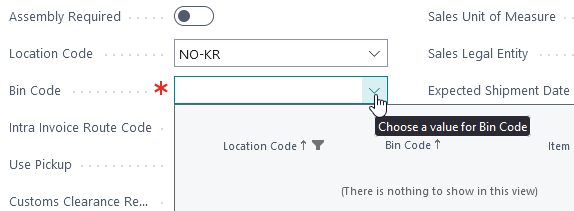
With the flag set to 'On', the Bin Code drop-down box will be populated if there are lots of a linked purchase item available. If not, the list will be empty.
With Assembly Required set to 'On', an additional function is available to automatically create an assembly order & a new section called Input Lines will appear which is required to be configured for the conversion.
You will need to know what linked purchase item to choose in advance.

The Input Lines section has a function which can assist with this.
It filters the list only to items
paired with the sales item & also displays the inventory status of
the items. The function requires Type & No. (add your sales item No.) to be completed manually & then click Functions -> Select Item Substitution.
Here we can see that we have two linked purchase items, but there is no inventory on hand in this Location in the specified Bin.
Inventory on hand.
Input Lines now completed with a purchase item

You can also run a report to view the lots in a
specific Location & Bin - "Item Bin Contents"
In the case a SO was made where Assembly Required was set to 'Off' by accident, then the sales ref. can be recovered by setting Assembly Required to 'On' & then manually creating the assembly order. This can be done with Create Assembly Order under the Process menu.

Next, set the item tracking & then ship the sale.

Related: possible error message
Most items should be paired & so in most cases this is a data error. Please add to existing or submit a new ticket.
The Assembly Required option is not required in this case & needs to be set to 'Off'. The sales order can be created & tracking added as per standard procedure, then the sale shipped out.
Steps
Steps
Case #1
- Set Assembly Required = 'On'
- [option] Go Process' -> Create Assembly Order
- Configure section Input Lines (steps lower)
- Ship sale
Blending Lines
- Set Type to 'Item' & add the sales item number into the 'No.' field (!note, bypass this & go to step
#4 below if you know which purchase item is paired & to be used)
- Functions -> Select Item Substitution
- Pick item with sufficient inventory
- Set 'Unit of Measure Code' to the same as the Sales item UoM
- Set 'Quantity per' to '1' (! do not edit 'Quantity to Consume')
- Set tracking by Line -> Item Tracking Lines checking the 'Undefined' goes to zero
With Blending Lines configured (with the purchase item code now in place), the Sales Order can now be shipped out:
Document Entries -> Line -> Post -> Ship
Document Entries -> Line -> Post -> Ship
Related Articles
Correction: change purchase contract number on a DL ref. when quantity is received (but not invoiced), sale is shipped, invoiced & transit has not been used
Correction: change purchase contract number on a DL ref. when quantity is received (but not invoiced), sale is shipped, invoiced & transit has not been used. Issue A direct delivery ref. has been made & processed all the way through to the sales ...Ref.: - Message - Quantity Received must be 0 in MBP Ref No. No.=000-123456
Problem trying to receive & ship a direct delivery ref. where the Quantity Received has a value on the Ref. General tab. Issue Navision function Actions -> Receive Purchase/Transfer results in an error message: Checking the General tab shows a value ...Ref.: - Message - Item <any item code> is not on inventory
Problem trying to receive picked up inventory from Transit. Issue Navision function Actions -> Receive Purchase/Transfer results in an error message: Checking the General tab shows a value in Quantity Received. Checking the Receive/Ship tab shows a ...Correction: Ref. - How to change a service PO, ticked to recharge & service SI is made
How to change the quantity or value on a Service PO which has been received and is ticked to recharge and recharge SI is made. Issue A service PO was made with the recharge option ticked & accounting has made the recharge SI, however, the service PO ...Correction: Intra invoicing - indentify part posted intra documents &or post additional intras.
How to identify part posted or partly corrected intra invoice documents in Navision. Issue Intra invoices are always made in pairs. Accounting can't complete their monthly VAT tasks due to unbalanced general ledger entries as a result of a User not ...